Web Interface Analysis
With the System Hardening Analysis performed, the next goal was to analyse the router’s web management interface, which is accessible at http://tplinkwifi.net (or http://192.168.0.1) from any device connected to the LAN. The interface contains several features that allow the user to configure the device and view its information. This can be done through several provided menus, such as:
- Status
- Network
- Dual Band Selection
- Wireless 2.4GHz
- Wireless 5GHz
- Guest Network
- DHCP
- USB Settings
- NAT
- Forwarding
- Security
- Parental Control
- Access Control
- Advanced Routing
- Bandwidth Control
- IP & MAC Binding
- Dynamic DNS
- IPv6 Support
- System Tools
The following sections document the security findings identified during the web interface assessment.
Authentication
Accessing the web interface for the first time displays a login page prompting a username and password, as seen below. The interface was accessed using the default credentials printed on the device label (admin/admin). The use of weak default credentials to access the web interface has been added as finding MEDIUM-06.
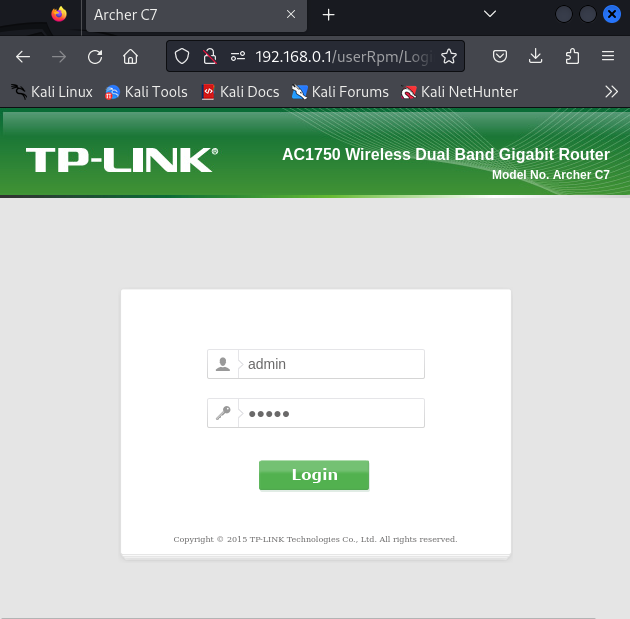
No observable rate limiting or account lockout mechanism was identified, allowing for unlimited login retries upon the insertion of incorrect credentials, making the interface susceptible to brute force attacks. This has been added as finding MEDIUM-07.
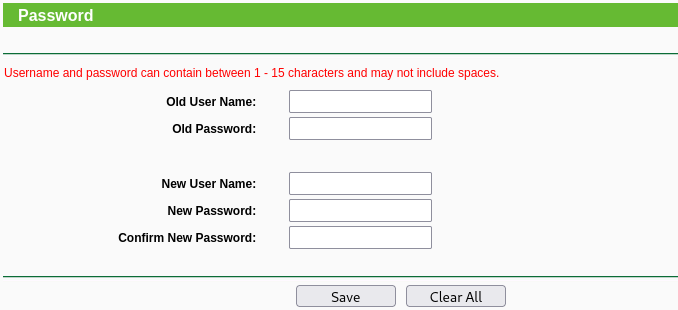
Furthermore, the password change functionality under System Tools → Password was found to enforce no complexity requirements whatsoever, accepting single character passwords. This means a user could trivially weaken their credentials further after initial setup. This has been added as finding INFO-17.
Configuration backup and restore
The System Tools → Backup & Restore submenu, shown below, allows any authenticated user to download a complete backup of the router’s configuration as a binary file (config.bin).
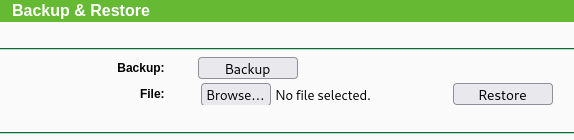
A backup of the current configuration of the router was performed and initial inspection of the downloaded config.bin file suggested encryption, as running the strings command against it produced no readable output. However, further research regarding available tools to decrypt this file (tpconf_bin_xml and tp.rb) revealed that TP-Link uses hardcoded DES-ECB keys across its consumer router range to encrypt these backup files.
Decrypting using tpconf_bin_xml
Having cloned the tool to the Kali environment, the following command was used (providing the seen error below it).
┌──(lucas㉿localhost)-[~/tools/tplink/tpconf_bin_xml]
└─$ python3 tpconf_bin_xml.py ~/Downloads/config.bin ~/config.xml
WARNING: Unrecognized file type when using this key! Attempting next one.
WARNING: Unrecognized file type when using this key! Attempting next one.
WARNING: Unrecognized file type when using this key! Attempting next one.
WARNING: Unrecognized file type when using this key! Attempting next one.
ERROR: Unrecognized file type and no known keys left!
This indicated that this specific tool did not support the decryption of backup files of the router in question.
Decrypting using tp.rb
After the previous unsuccessful decryption a last effort was made using the tp.rb script, also available online. A few tweaks were required in order to run the script correctly via the command below.
┌──(lucas㉿localhost)-[~/tools/tplink/7a6413f087c15b233a69bb46edcfec17]
└─$ ruby tp.rb config.bin
In the end, the script provided a decrypted config.cfg file containing the plaintext configuration of the router. The decrypted configuration revealed several sensitive items in plaintext or weakly hashed form, including:
- Web interface credentials: admin username and password hash present in MD5 format (
lgn_pwd,lgn_opswd) - NAS credentials: admin credentials for the NAS/USB sharing feature present as both MD5 and NTLM hashes (
nas_user_passwd_login_md5,nas_user_passwd_login_smb) - WPS PIN: WPS PIN exposed in plaintext (
5g_wlan_def_pin,5g_wlan_usr_pin) - Wi-Fi PSK: Wi-Fi pre-shared key exposed in plaintext (
5g_wlan_PskSecret)
The use of a publicly disclosed hardcoded encryption key regarding this device means that any configuration backup from any routers of this model can be decrypted by anyone with knowledge of this key. This has been added as finding HIGH-03.
Additionally, as previously seen in the Manual Firmware Analysis chapter, this key is also hardcoded in firmware memory.
Wireless security
Analysis of both the Wireless 2.4GHz and Wireless 5GHz menus, revealed that both wireless networks had WPS (Wi-Fi Protected Setup) enabled, using WPA/WPA2 (Wi-Fi Protected Access) Personal security by default, as shown below. The default use of WPS has been added as finding INFO-18, which was classified as informational since the attacks performed on this standard (subsequently presented in the Wi-Fi Testing chapter) were not successful.
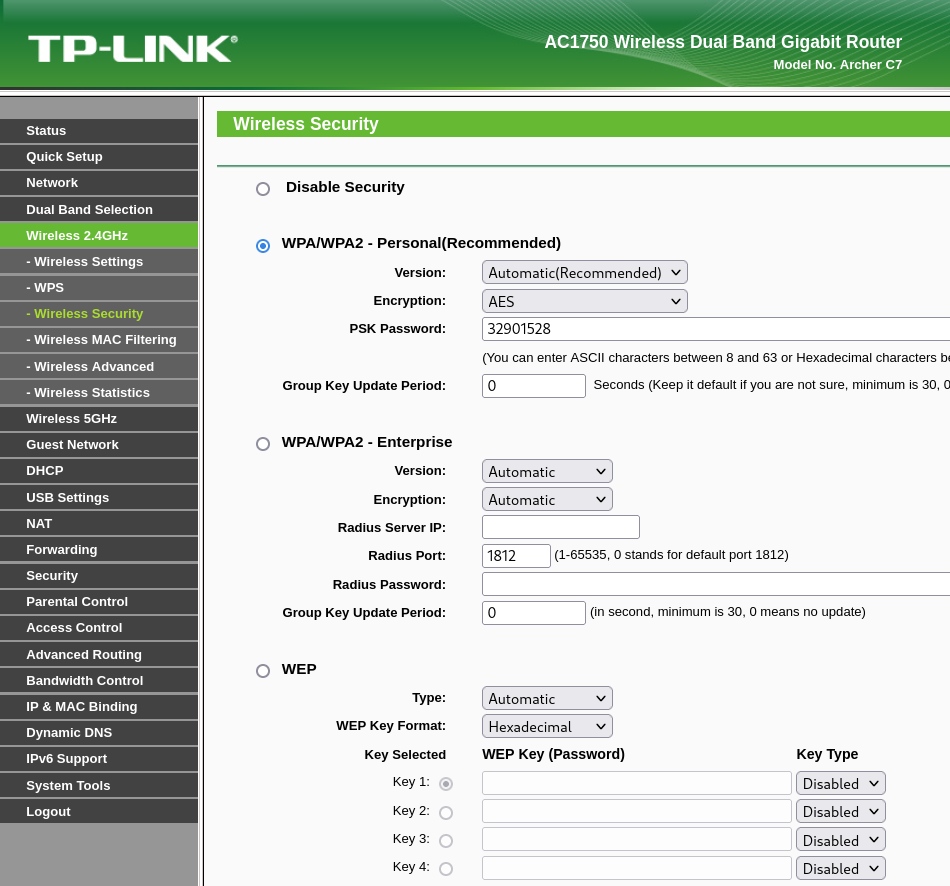
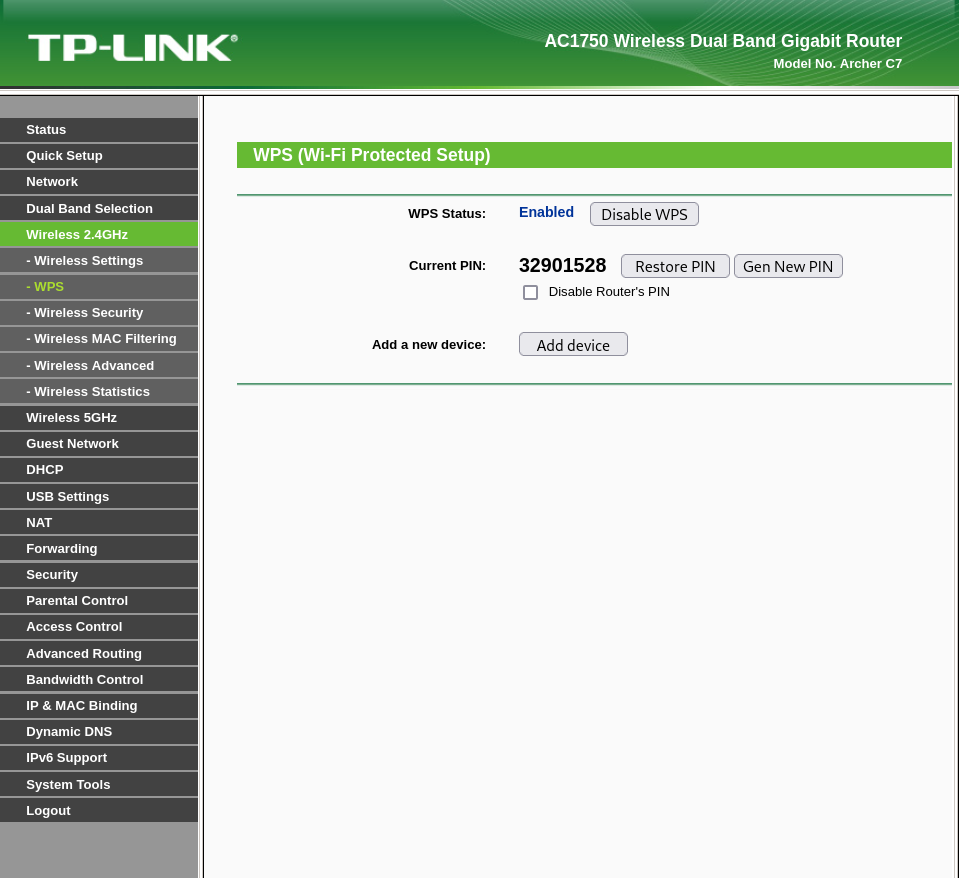
The web interface also reveals that the default Wi-Fi PSK and WPS PIN are identical. This is significant since an attacker who obtains the WPS PIN will still be able to connect to the network via WPA/WPA2 authentication even in situations where WPS has been disabled as a remediation measure. This is a realistic scenario since, as detailed in the Configuration backup and restore section, the WPS PIN is exposed in plaintext in the decrypted configuration backup file (config.cfg). The fact these credentials are the same by default has been added as finding MEDIUM-08.
Further testing regarding WPS and WPA/WPA2 is discussed in the subsequent Wi-Fi Testing chapter.
Remote Management
Remote management was found to be disabled by default, with the external management IP address set to 0.0.0.0.
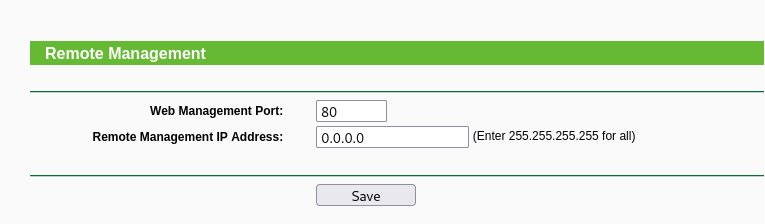
This means the web interface is not accessible from the WAN port without explicit configuration, which is a positive security default.
Port Forwarding
The Forwarding menu contains four submenus, each examined for default configuration and security implications:
- Virtual Servers: empty by default, no port forwarding rules pre-configured
- Port Triggering: empty by default, no rules pre-configured
- DMZ: disabled by default, meaning no internal host is fully exposed to the WAN
- UPnP: enabled by default
The first three represent positive findings as no unexpected services are exposed to the WAN out of the box. However, as seen in the image below, UPnP is enabled by default, which constitutes a significant concern. The fact that UPnP is enabled by default has been added as finding MEDIUM-09, which is supported by the tests subsequently presented in the UPnP Testing chapter.

Dynamic DNS
The Dynamic DNS submenu allows configuration of a DDNS service provider (No-IP, DynDNS, or Comexe) with associated credentials and domain name. The feature was found to be disabled by default across all three supported providers. To assess how credentials are stored when the feature is configured, DDNS was enabled with test credentials and a new configuration backup was downloaded and decrypted. The relevant snippet from the resulting config file is shown below.
ddns_noip_usr ddnsuser
ddns_noip_pwd ddnspassword
The test credentials were stored in plaintext in the configuration file, confirming that any DDNS credentials configured by a user are exposed in the backup without any hashing or encryption. This is consistent with the credential storage weaknesses already identified in the Configuration backup and restore section. Since the DDNS credentials are stored in plaintext, this has been added as finding LOW-03.
USB Settings
The USB Settings menu contains three submenus:
- Disk Settings
- Folder Sharing
- Print Server
These three collectively manage the router’s Network Attached Storage (NAS) functionality when a USB storage device is connected to it. Their analysis revealed several security observations, mentioned in the following sections. Further tests regarding the physical USB interface of the router are presented in the USB Testing section.
Disk Settings
The Disk Settings submenu manages connected USB storage devices. The decrypted configuration backup (config.cfg) confirmed that SMB folder sharing is enabled by default (nas_smb_enable 1), meaning any connected USB storage is immediately shared on the network without any explicit configuration. Therefore, an assessment regarding this default behaviour was conducted.
Firstly, a USB drive was connected to one of the router’s USB ports. A scan was then performed via the web interface, which identified the mass storage as volume1, as seen in the image below.
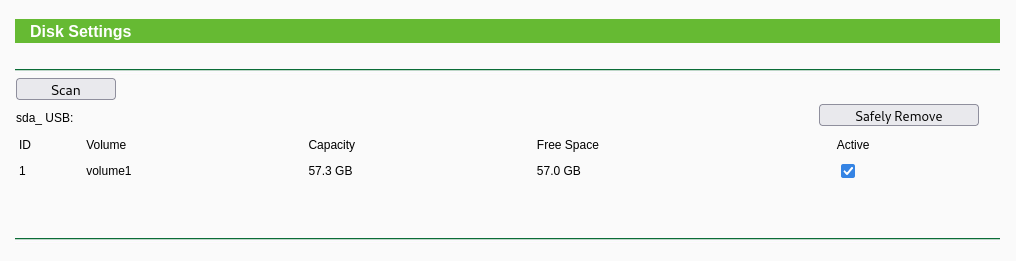
Subsequently, the listing of shares was attempted via anonymous access, which listed the volume1 share connected to the target without requiring authentication via username and password, as seen in the log below.
┌──(lucas㉿localhost)-[~]
└─$ smbclient -L //192.168.0.1 -N

        Sharename       Type      Comment
        ---------       ----      -------
        volume1         Disk
        IPC$            IPC       IPC Service (TP-LINK_AA1E56)
Reconnecting with SMB1 for workgroup listing.

        Server               Comment
        ---------            -------

        Workgroup            Master
        ---------            -------
The last step consisted in attempting to connect to the share and, if successful, assess read and write permissions on it. The output below demonstrates these actions.
┌──(lucas㉿localhost)-[~]
└─$ smbclient //192.168.0.1/volume1 -N
Try "help" to get a list of possible commands.
smb: \> ls
  .                                   D        0  Mon Jan  1 09:36:33 2018
  ..                                  D        0  Mon Jan  1 08:48:57 2018
  System Volume Information           D        0  Tue Nov 12 23:55:40 2024
  .Trash-1000                        DH        0  Wed Mar 18 22:23:04 2026
  .TPDLNA                            DH        0  Mon Jan  1 09:58:18 2018
  Junk                                D        0  Wed Mar 18 19:43:20 2026

                60048672 blocks of size 1024. 59815232 blocks available
smb: \> mkdir hacked
smb: \> ls
  .                                   D        0  Mon Jan  1 09:36:53 2018
  ..                                  D        0  Mon Jan  1 08:48:57 2018
  System Volume Information           D        0  Tue Nov 12 23:55:40 2024
  .Trash-1000                        DH        0  Wed Mar 18 22:23:04 2026
  .TPDLNA                            DH        0  Mon Jan  1 09:58:18 2018
  hacked                              D        0  Mon Jan  1 09:36:53 2018
  Junk                                D        0  Wed Mar 18 19:43:20 2026

                60048672 blocks of size 1024. 59815200 blocks available
As seen, both anonymous read and write access were confirmed. This means any device on the LAN can create, read, modify or delete files on any USB storage connected to the router without providing any credentials. Additionally, it was noted that the connection was established via SMB1, a deprecated protocol version that has been disabled by default in modern operating systems. The ability to access and modify USB storage devices on the router with no authentication has been added as finding MEDIUM-10.
Folder Sharing
The Folder Sharing submenu allowed for the configuration of access methods to the connected storage as seen in the image below.
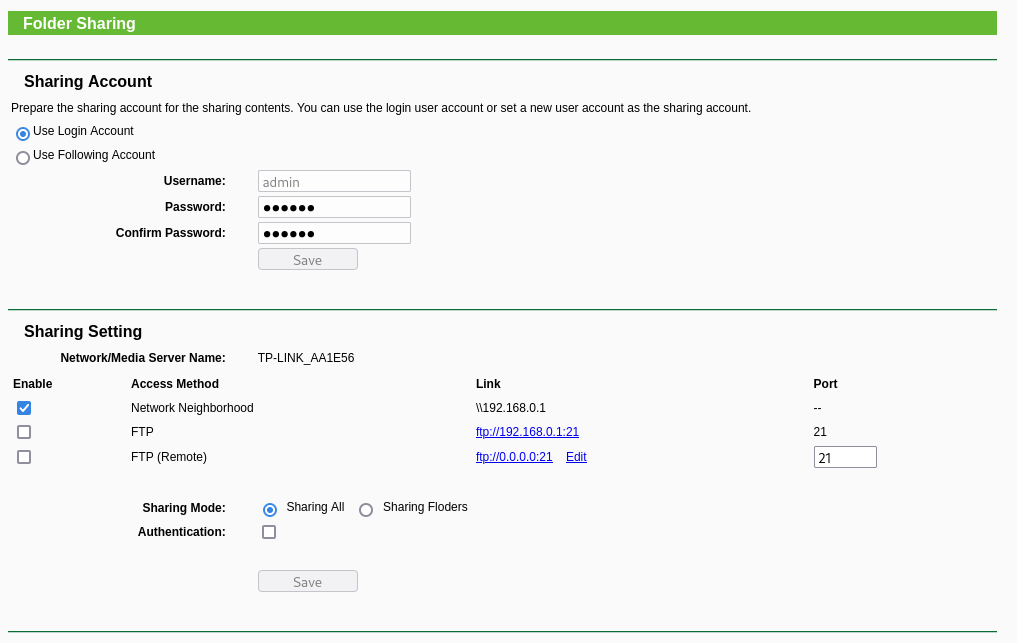
From this submenu, several observations were made:
-
Credentials inherited from web interface: folder sharing defaults to using the same credentials as the web management interface via the “Use Login Account” option. This means the weak default credentials (admin/admin) automatically extend to FTP access if enabled, without requiring any additional credential configuration.
-
FTP: FTP access requires explicit enabling through this submenu, explaining the filtered state of port 21 observed during the external network scan performed in the System Hardening Analysis chapter. From here, FTP was enabled along with authentication and tested for USB storage read and write permissions in three different ways, as illustrated in the table below.
FTP login method Read access Write access Empty credentials ❌ ❌ Anonymous login ❌ ❌ Web interface credentials ✅ ✅ -
Remote FTP: similarly to FTP, remote FTP requires the user to explicitly enable it via this submenu, allowing FTP access from the internet. This option defaults to no authentication, meaning a user could inadvertently expose connected USB storage to the entire internet without any access control. Even if authentication is enabled, the default inherited credentials (admin/admin) provide little protection until changed. Placing these responsibilities entirely on the user introduces significant risk. The combination of a permissive default configuration and weak default credentials means that a simple oversight during setup could result in publicly accessible storage.
The fact that (1) folder sharing credentials are inherited from the web interface and (2) remote FTP defaults to no authentication, has been added as finding INFO-19.
Print Server
The Print Server submenu, which manages the network printing functionality, was found to be enabled by default. An unnecessarily enabled service represents additional attack surface on the device, which has been added as finding INFO-20.

Web application security testing
Beyond the configuration and settings analysis, the web interface was tested for common web application vulnerabilities, such as:
- SQL injection
- Cross-Site Scripting (XSS)
- Command injection
- Authentication bypass via direct URL access
- Cross-Site Request Forgery (CSRF)
The performed tests regarding all of these vulnerabilities are detailed in the following sections.
SQL Injection
SQL injection was attempted on the login form by inserting common injection payloads into the username and password fields, having returned an authentication failure, as exemplified below.
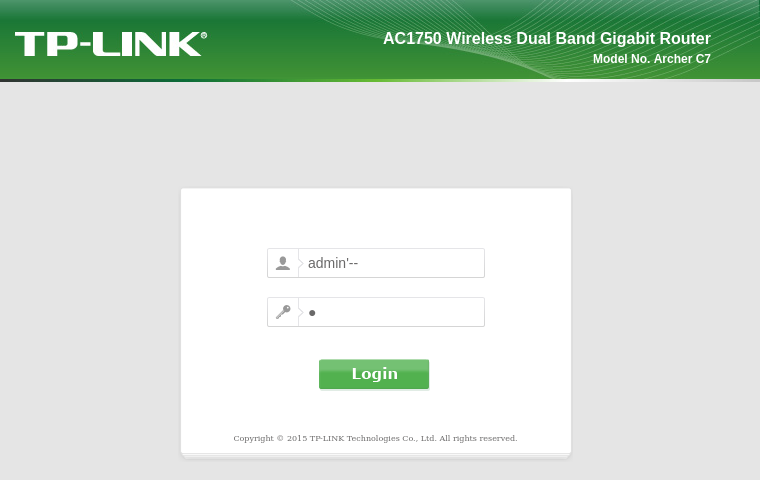
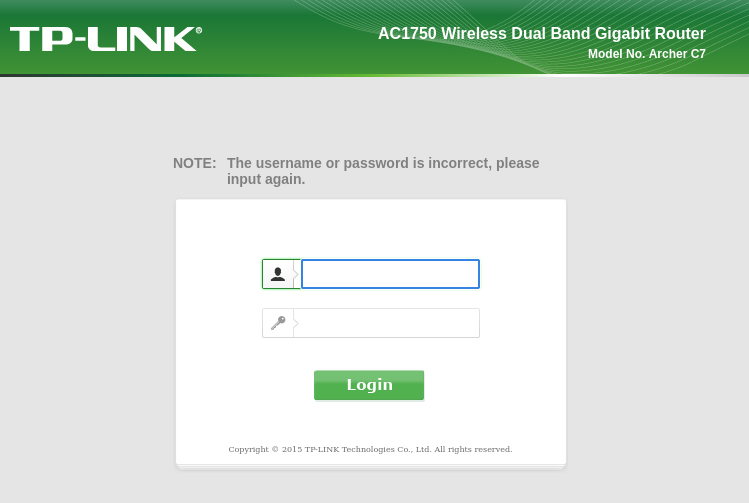
This behaviour suggests the backend correctly sanitises user input. Therefore, no SQL injection vulnerability was identified.
Cross-Site Scripting (XSS)
XSS was attempted by inserting script tags and common payloads into various input fields throughout the interface, as seen below.
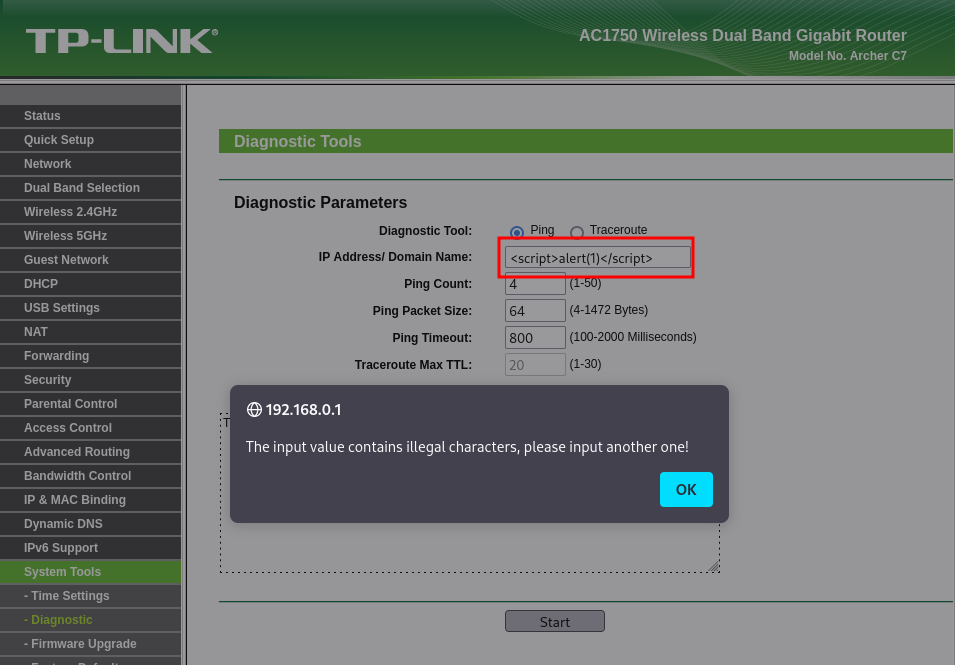
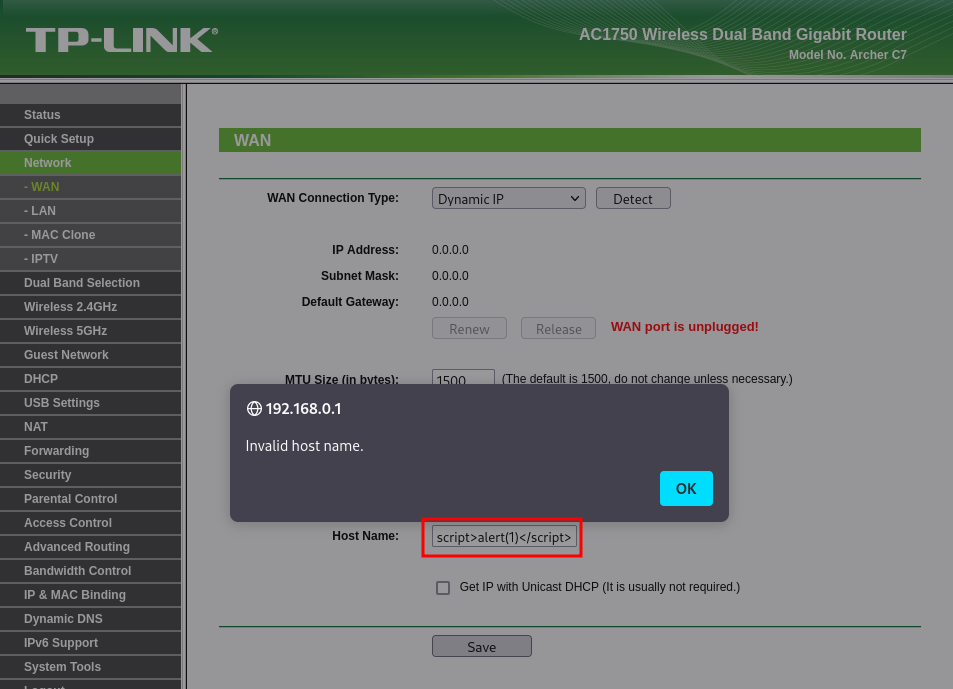
All tested fields rejected special characters with invalid input errors, preventing script injection. No XSS vulnerability was identified.
Command Injection
The diagnostic tool under System Tools → Diagnostic accepts an IP address or domain name for ping and traceroute operations. Command injection was attempted by appending shell operators and commands to the input, as exemplified in the image below.
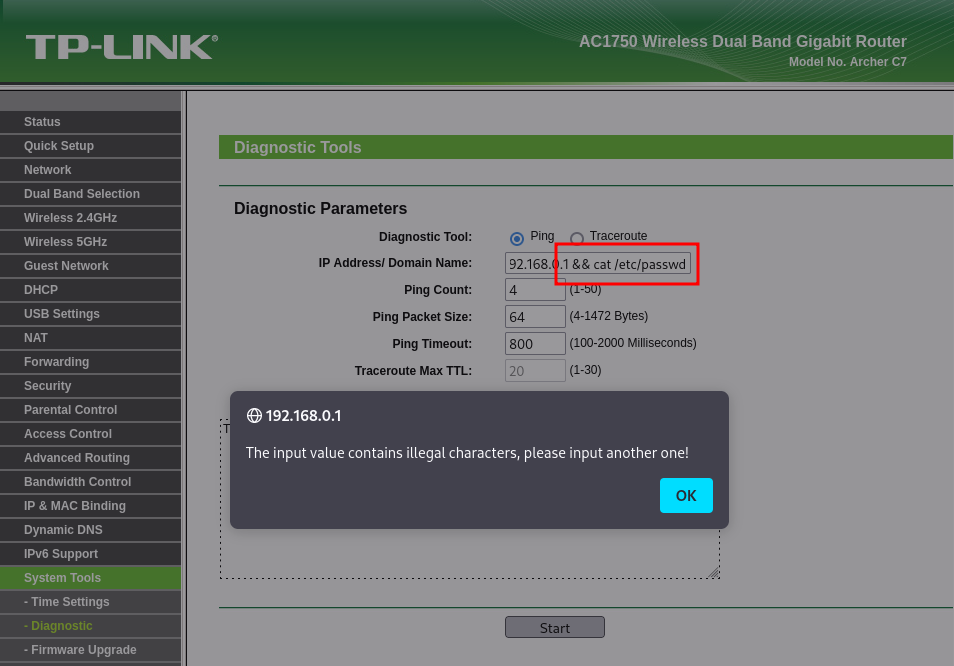
All attempts were rejected with invalid format errors. The input validation appears to restrict the type of characters that can be used, preventing command injection.
Authentication Bypass via Direct URL Access
An attempt was made to access internal pages directly without authenticating, by navigating to known router interface URLs, such as:
- http://192.168.0.1/userRpm/Index.htm
- http://192.168.0.1/userRpm/ChangeLoginPwdRpm.htm
- http://192.168.0.1/userRpm/NasDiskSettingsRpm.htm
All direct access attempts were redirected to the login page, confirming that authentication is enforced on all endpoints.
HTTP security and CSRF protection
Analysis of form submissions and request headers revealed several significant findings regarding how the web interface handles authentication and requests, detailed below.
-
HTTP Basic Authentication over plain HTTP: the router uses HTTP Basic Authentication, transmitting credentials in several requests via the Authorization header, as seen below.
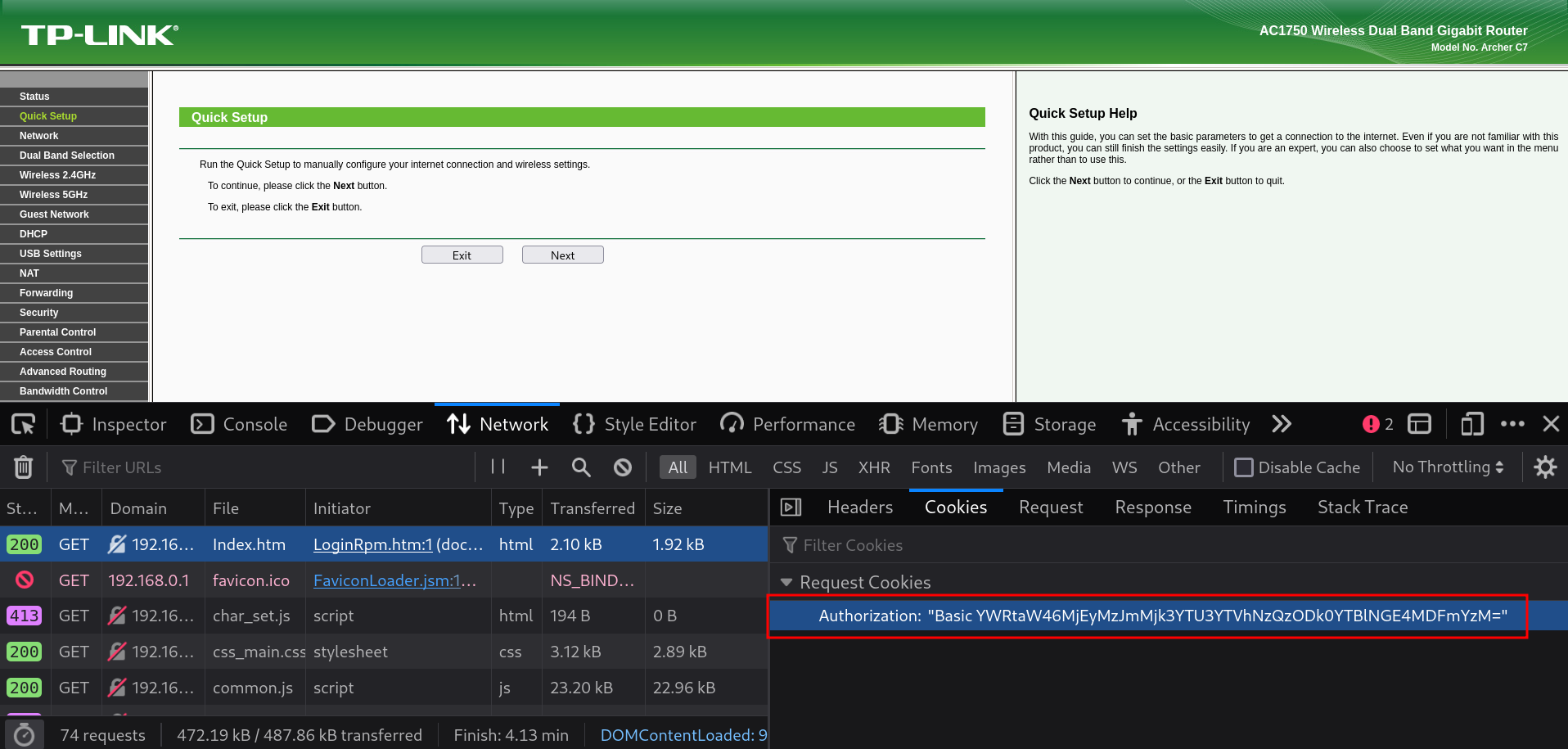
The value is Base64 encoded, and decodes to
admin:<password_hash>. Since the interface operates exclusively over plain HTTP with no HTTPS support, these credentials are transmitted in cleartext in the requests and are visible to anyone intercepting network traffic on the same network, since Base64 is a trivially reversible encoding that provides no security benefit. -
Credentials transmitted via GET request: beyond the Authorization header, sensitive form submissions such as password changes are sent as HTTP GET requests with all parameters appended to the URL, as observed in the Referer header during a password change operation.
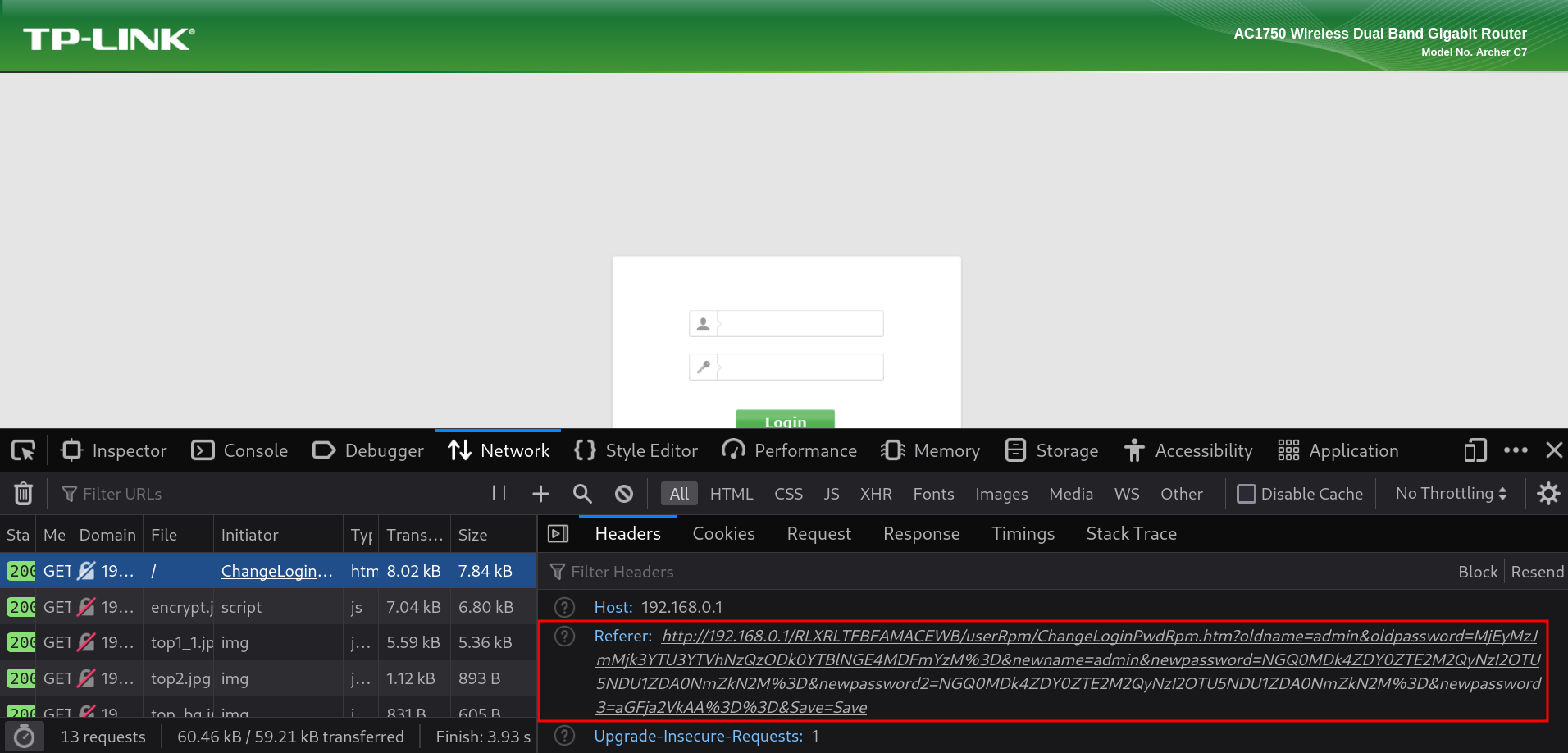
Transmitting credentials as GET parameters exposes them in browser history, server access logs, and the Referer header sent to any subsequently loaded resource. Further inspection of the GET request preceding this one reveals an encrypt.js file containing client-side MD5 hashing and Base64 encoding functions, confirming that passwords are hashed using this algorithm and then Base64 encoded before being appended to the URL as a GET parameter.
This was confirmed by capturing network traffic using Wireshark during a password change operation. The capture can be seen in the change_pwd.pcapng file, which has been filtered so as to only include the communication between the kali attacking machine and the target. The captured packet shows the complete request in plaintext, including the session token and all credential parameters. Decoding the
newpassword3parameter from Base64 directly reveals the new password in plaintext, demonstrating that credential exposure is immediately exploitable by anyone capturing traffic on the same network.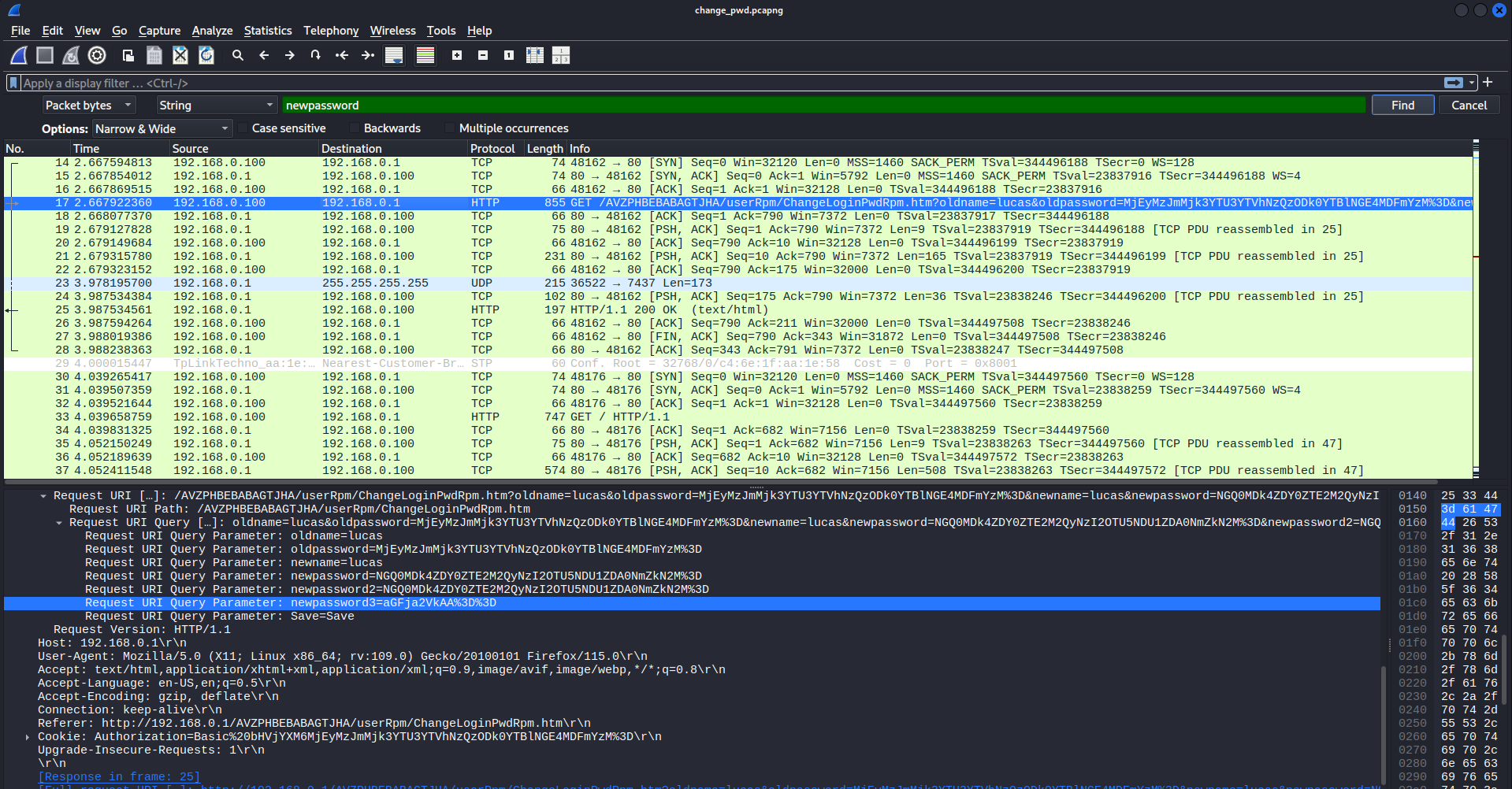
-
Implicit CSRF protection via URL token: the session token embedded in the URL path (e.g.
http://192.168.0.1/AVZPHBEBABAGTJHA/userRpm/Index.htm) provides some implicit CSRF protection, as an external attacker cannot easily guess the token value. However this protection is undermined by the use of plain HTTP, which makes the token visible to anyone intercepting network traffic (which can also be seen in the Wireshark capture above).
The above observations have been added as finding MEDIUM-11.